
ePassport · ID card · NFC
Read and check passports and ID cards with NFC
CodeB Wallet reads the chip of an electronic passport or ID card with your Android phone’s NFC – name, date of birth, nationality, document number, expiry date and the photo – and checks that the document is genuine: the issuing country must have signed the data, and the chip must prove that it is not a copy. Everything happens on your phone.
- Chip data with photo
- Genuineness check
- Nothing sent anywhere
The steps in the app
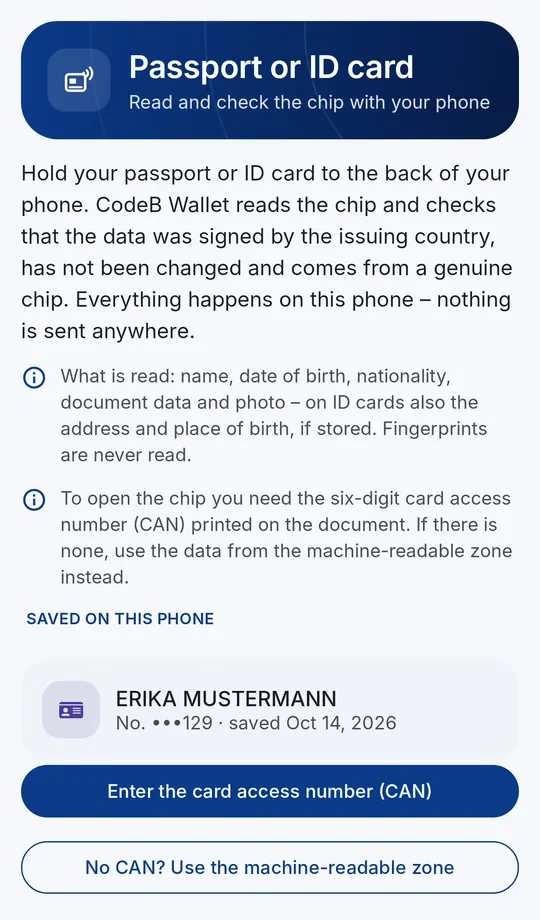
1Choose the card access number (CAN) or the machine-readable zone. 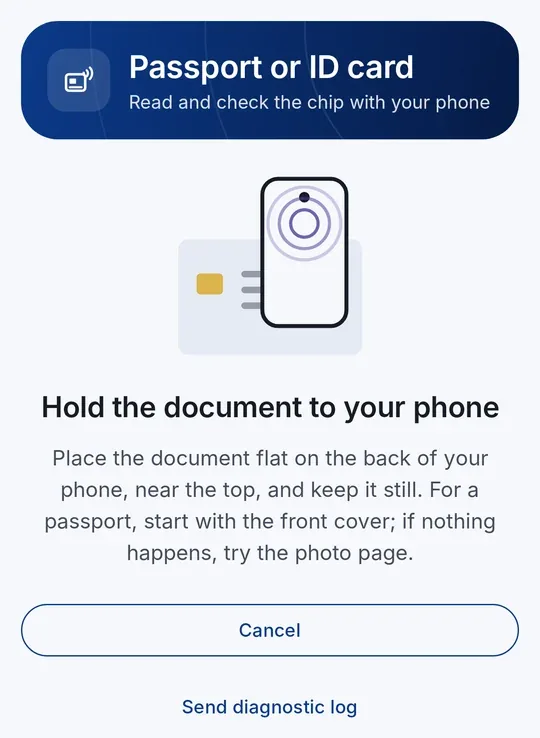
2Hold the document flat against the back of the phone and keep it still. 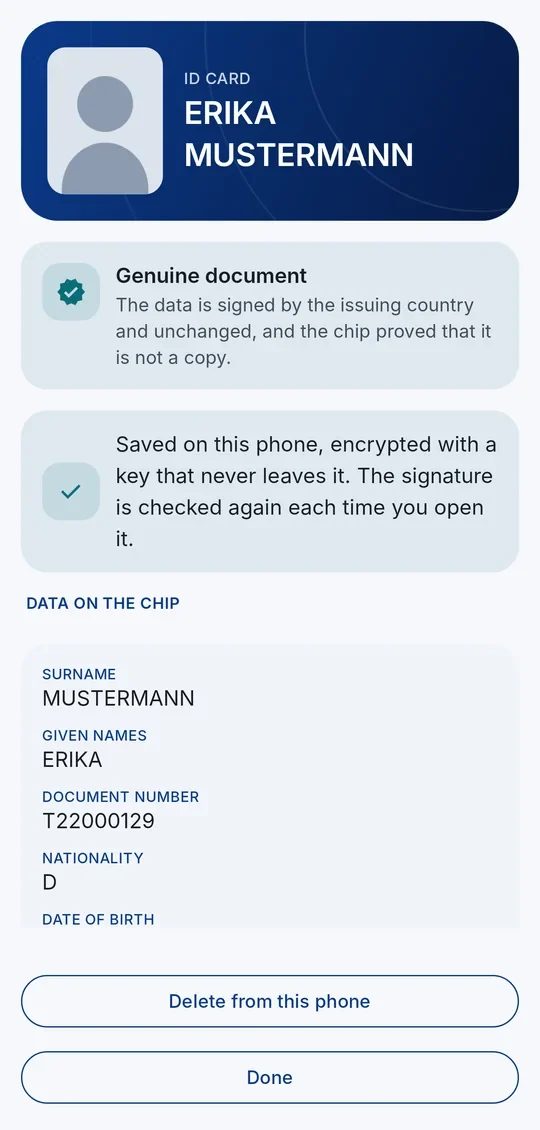
3See whether it is genuine, the issuing country and the data with the photo.
What you need
An Android phone with NFC and a document with a chip – passports show a chip symbol on the cover, newer ID cards have the chip inside.
Reading documents works on every Android phone with NFC. Organisations can also check documents remotely – see remote ID verification.
How to read a document
- On the home screen tap ID card.
- Open the chip with the card access number (CAN) – the 6 digits on the front of many ID cards – or let the camera read the machine-readable zone (the two or three lines at the bottom of the photo page). You can also type the data.
- Hold the document flat against the back of your phone and keep it still until the reading is complete. If no chip is found, move the phone slowly and remove a thick case.
- You see the result: whether the document is genuine, the issuing country, and the chip data with the photo. Tap Save on this phone to keep an encrypted copy.
What the check means
The chip’s data must carry a valid signature of the issuing country, checked against the country certificates, and the chip must prove that it is not a copy. CodeB Wallet shows clearly whether both checks passed.
Your data stays on your phone
Nothing is sent anywhere when you read a document this way. If you save it, the copy is encrypted on your phone and appears as its own card on the home screen; you can delete it at any time. A saved copy is not an EU digital identity document and cannot be shown to others with the wallet.
More from your passport or ID card
With your passport or ID card you can also open a free CodeB account and receive a test PID and a Photo ID in your wallet – see the guide to the free CodeB account.
Questions about reading passports and ID cards
Can my Android phone read the chip in my passport?
Yes, if the phone has NFC. CodeB Wallet opens the chip with the card access number (CAN) or the machine-readable zone, reads the data and the photo and checks that the passport is genuine.
How does CodeB Wallet know a document is genuine?
The chip’s data must carry a valid signature of the issuing country, checked against the country certificates, and the chip must prove that it is not a copy.
Is my passport data uploaded anywhere?
No. Reading a document this way happens only on your phone; nothing is sent anywhere. A saved copy is encrypted on your phone.
Where do I find the CAN?
On many ID cards the card access number (CAN) is the 6-digit number printed on the front. Passports and cards without a CAN are opened with the machine-readable zone.
The chip is not found – what can I do?
Hold the document flat and still on the back of the phone, move it slowly to find the antenna, try the front cover and then the photo page of a passport, and remove a thick case.
Install the test version (Google Play) Closed beta: works only for invited testers who are signed in to Google Play with the e-mail address we have on our tester list.