
PDF signing · signature card or signing service
How signing works – with your signature card or the CodeB signing service
CodeB Wallet signs PDF documents on your Android phone. For every signature you choose how: with your own signature card over NFC – such as the Maltese eID, a D-Trust card or a German health professional card – or with the CodeB signing service, a server-based remote signature that only needs your free CodeB account. Either way you get a PAdES signature with a trusted timestamp, and your PDF stays on your phone. CodeB Wallet itself is not certified.
- You choose for every signature
- Signature card or remote signature
- PAdES with trusted timestamp
The workflow in the app
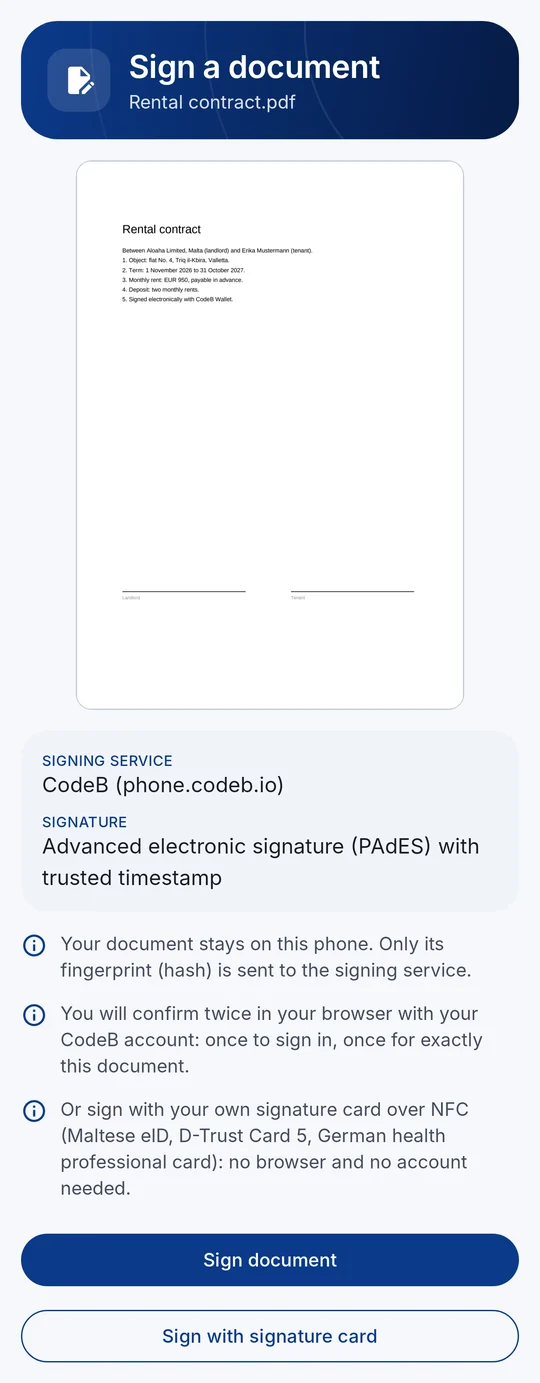
1Check the PDF – then choose how to sign. 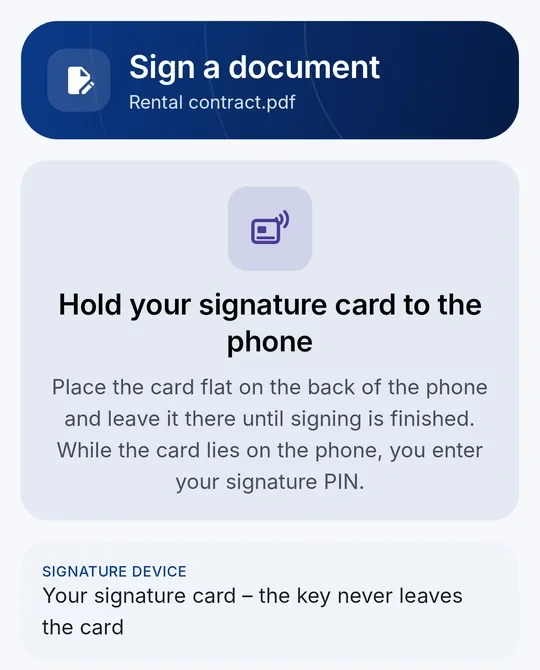
2With your card: card access number, hold the card, PIN. 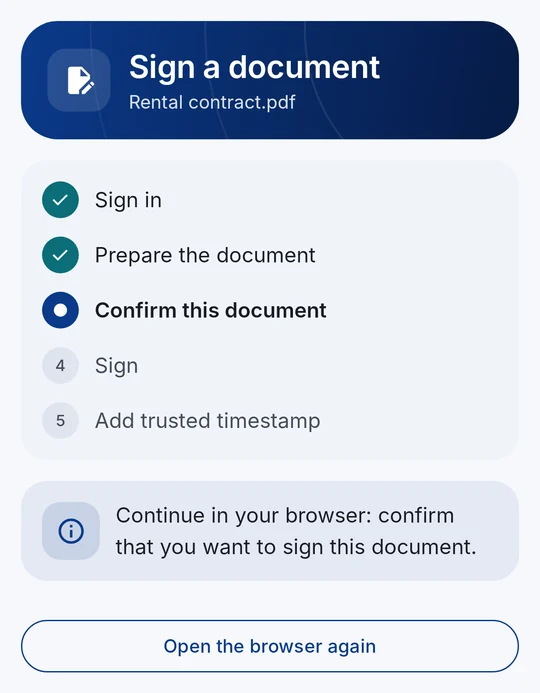
3Or with the signing service: confirm in your browser. 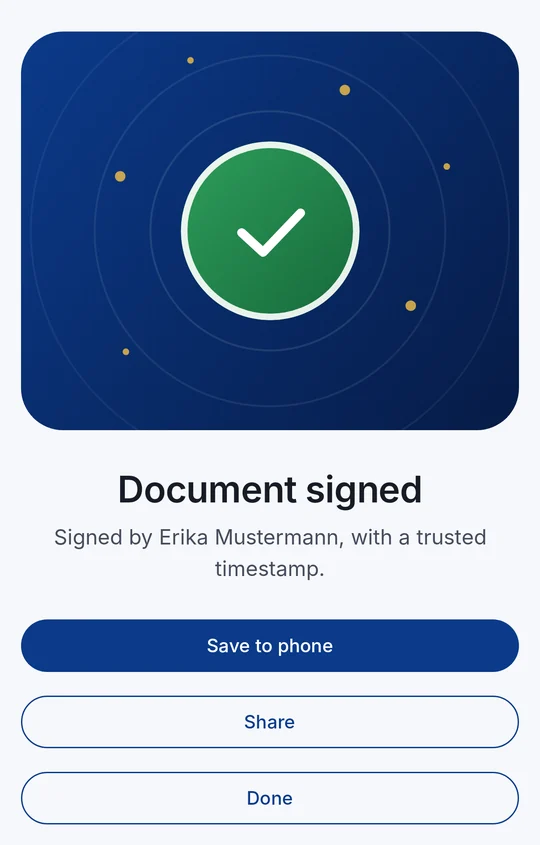
4Signed – with a trusted timestamp. Save or share.
The signing workflow at a glance
- 1Choose and check the PDFSign → Select document; every page in the preview
- 2Choose how to signYour signature card or the CodeB signing service – for every signature
- 3ConfirmCard: CAN and signature PIN · Service: sign in and confirm in the browser
- 4Signed PDFPAdES signature with trusted timestamp – save or share
The workflow is the same for every PDF – your own document or one that someone else asks you to sign. Only one step differs: how you confirm the signature. You decide that every time you sign, so you can use your card for a contract and the signing service for a quick form.
Signature card or signing service – you choose for every signature
On the review screen you see both buttons: Sign with signature card uses your own card over NFC, Sign document uses the CodeB signing service. Both create a PAdES signature with a trusted timestamp.
| Your signature card | CodeB signing service | |
|---|---|---|
| How it works | Your own smart card signs over NFC; the key never leaves its chip | Server-based remote signature: your signing key is kept by the CodeB signing service on phone.codeb.io |
| Signature level | What the card’s certificate states – qualified (QES) with the Maltese eID, D-Trust cards and the HBA; advanced with the eGK | Advanced electronic signature (AdES) |
| What you need | The card, its card access number (CAN), your signature PIN and a phone with NFC | A free CodeB account – sign in with password, passkey or your EU Wallet |
| Browser and account | Neither – the card and your PIN are enough | You confirm twice in your browser: once to sign in, once for exactly this document |
| Your PDF | Stays on your phone; only a fingerprint of the signature goes to the timestamp service | Stays on your phone; only its fingerprint (hash) goes to the signing service |
| Good for | Contracts and forms that need a qualified electronic signature; professionals with a D-Trust card or HBA | Everyday documents without a card – 5 of your own documents a day with the free guest account |
If a website asks for a qualified electronic signature, only a card whose certificate states a qualified signature can be used for it.
Signing with a signature card is currently being tested in closed groups – to join, write to info@aloaha.com. Until it is enabled for you, the app offers the signing service only.
How to sign your own PDF
- On the home screen tap Sign, then Select document and pick a PDF on your phone – or tap myeuid.app/open/sign on your phone.
- Check the document: swipe through the pages and see the signing service and the signature type.
- Choose how to sign: Sign with signature card or Sign document (CodeB signing service).
- With your card: enter the 6-digit card access number (CAN) printed on the card, hold the card flat against the back of the phone and enter your signature PIN. The card signs.
- With the signing service: your browser opens – sign in with your CodeB account, choose your signing certificate if you have more than one, and confirm that you want to sign exactly this document.
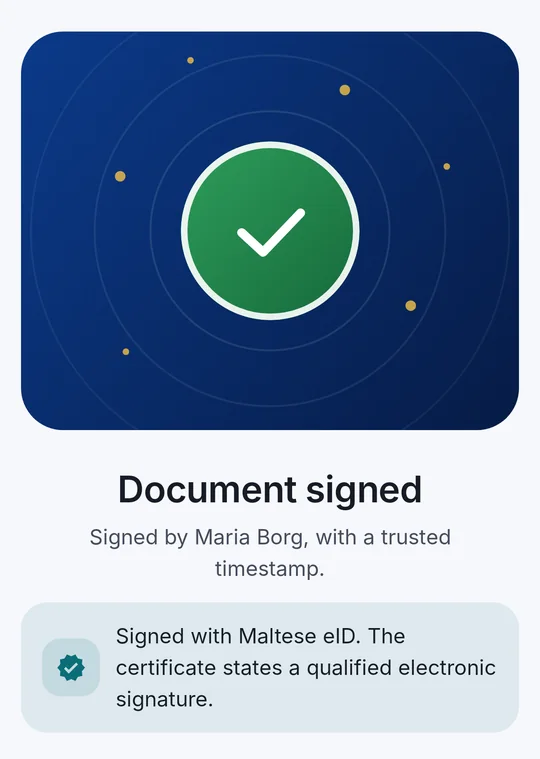
- The app adds a trusted timestamp. You see “Document signed” – tap Save to phone or Share.
Signing with your signature card
Your own signature card makes the signature – the key never leaves its chip, and no browser and no account are needed. Supported: the Maltese eID and Maltese residence cards, the D-Trust Card 5 signature and seal cards, and the German health professional card (HBA) and electronic health card (eGK).
Phone and card first build an encrypted, authenticated connection with the card access number (PACE, the protocol of European ID cards). Your signature PIN reaches the chip only over this connection; the app never stores it and never retries a wrong PIN by itself.
When it is done, the app shows which card signed and whether its certificate states a qualified electronic signature.
Signing with the CodeB signing service (remote signature)
The CodeB signing service on phone.codeb.io keeps your signing key on the server – a server-based remote signature. Your phone sends only the document’s fingerprint (hash); the PDF itself never leaves your phone.
You confirm every signature twice in your browser: once to sign in with your CodeB account – with password, passkey or your EU Wallet – and once for exactly this document. This way nobody can sign in your name.
You need a free CodeB account. You open it in the app with your passport or ID card in about two minutes.
Signatures from the CodeB signing service are advanced electronic signatures (AdES). The free guest account signs 5 of your own documents a day; documents others ask you to sign do not count.
When someone asks you to sign
- 1RequestPDFs uploaded on phone.codeb.io/sign-request, signers chosen
- 2QR code or linkScan in CodeB Wallet – or tap the link in the invitation mail
- 3Check and chooseWho asks, every document; card or signing service
- 4Signed PDF backThe next person gets an e-mail; at the end everyone gets the PDF
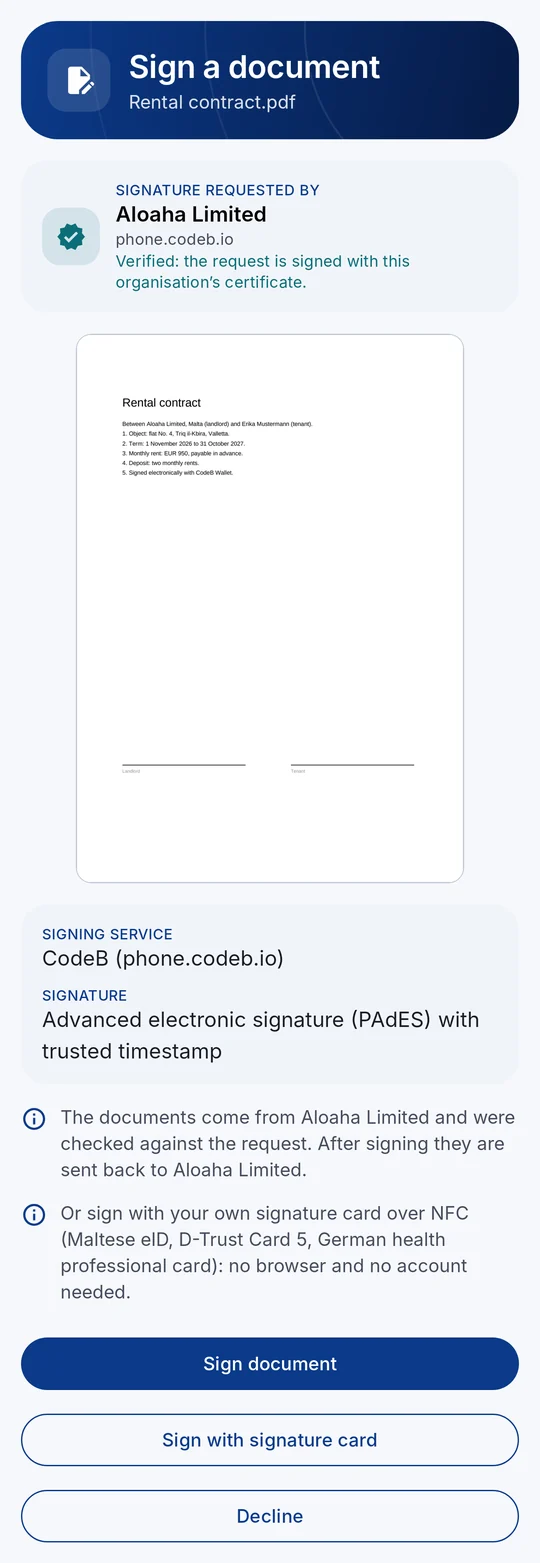
A website – or a colleague on phone.codeb.io/sign-request – can ask one or more people to sign the same PDFs one after another. Each person signs in CodeB Wallet by scanning a QR code or tapping the link in the invitation mail, and each one chooses again: signature card or signing service.
The wallet shows who asks – with “Verified” when the request is signed with that organisation’s certificate – and every document. Then you tap Sign document, Sign with signature card or Decline.
Every signer signs the PDF exactly as the previous one left it, so earlier signatures stay valid. When a request asks for a qualified signature, only a card with a qualified certificate can be used.
Step by step: sign a document from a website.
What you get: a PAdES signature
CodeB Wallet signs in the PAdES format (PDF Advanced Electronic Signatures, ETSI EN 319 142). The signature is embedded in the PDF; it is invisible on the page, and common PDF readers show it in their signature panel.
A trusted timestamp records when the document was signed. If no timestamp service can be reached, the document is still signed – without the timestamp.
Earlier signatures in the PDF stay valid. PDFs up to 40 MB can be signed; password-protected PDFs cannot.
CodeB Wallet uses Aloaha’s own PDF signing technology. Aloaha has been active in PDF development and digital signatures since 2003.
Advanced or qualified – what the difference means
Under the EU eIDAS regulation, a qualified electronic signature (QES) has the same legal effect as a handwritten signature. It needs a qualified certificate on a qualified signature creation device – for example a signature card.
An advanced electronic signature (AdES) is uniquely linked to the signer and shows any later change to the document. It is enough for many everyday documents, but not where the law requires a qualified signature.
CodeB Wallet shows what the certificate states. Signatures from the CodeB signing service are AdES. CodeB Wallet itself is not certified.
Security and privacy
Your PDF stays on your phone, whichever way you sign. The signing service receives only the document’s fingerprint (hash); with a card, only a fingerprint of the signature goes to the timestamp service.
Every signature needs your own fresh confirmation: your card’s signature PIN, or signing in and confirming the document in your browser.
With a card the signing key never leaves the chip. The app never stores your signature PIN.
Questions about signing
Can I choose between my signature card and a remote signature?
Yes – for every signature. On the review screen CodeB Wallet offers “Sign document” (the CodeB signing service, a server-based remote signature) and “Sign with signature card” (your own card over NFC). Signing requests from websites offer the same choice.
Which signature cards can I use?
The Maltese eID and Maltese residence cards, the D-Trust Card 5 signature and seal cards, the German health professional card (HBA) and the German electronic health card (eGK). You need the card access number (CAN) printed on the card and your signature PIN. Signing with a card is currently being tested in closed groups – to join, write to info@aloaha.com.
What is a remote signature?
With a remote signature your signing key is kept by a signing service on a server instead of on a card in your hand. You authorise every single signature yourself: in CodeB Wallet you sign in to the CodeB signing service and confirm exactly this document in your browser. The PDF stays on your phone – only its fingerprint (hash) is sent.
Do I need an account to sign?
Only for the CodeB signing service. You open the free CodeB account in the app with your passport or ID card in about two minutes. Signing with your own signature card needs no account and no browser.
Is the signature a qualified electronic signature (QES)?
That depends on the certificate used. With a card whose certificate states a qualified electronic signature – such as the Maltese eID, a D-Trust card or the HBA – the app shows the signature as qualified. Signatures from the CodeB signing service are advanced electronic signatures (AdES). CodeB Wallet itself is not certified.
Does my PDF leave my phone?
No. The signature is added to the PDF on your phone. The signing service receives only the document’s fingerprint (hash); with a card, only a fingerprint of the signature goes to the timestamp service.
Can several people sign the same PDF?
Yes, with a signing request on phone.codeb.io/sign-request: up to 5 invited people sign one after another (guest accounts: 2). Each of them signs in CodeB Wallet and chooses again between signature card and signing service. Earlier signatures stay valid.
How do others check my signature?
The signature is a PAdES signature embedded in the PDF. Common PDF readers show it in their signature panel, with the signer, the time from the trusted timestamp and whether the document was changed afterwards.
Install the test version (Google Play) Closed beta: works only for invited testers who are signed in to Google Play with the e-mail address we have on our tester list.