
PKI card · Windows · NFC
Your phone as a smart card for Windows sign-in
With CodeB Wallet your Android phone acts as a contactless PKI smart card. Hold it to the PC’s NFC reader, enter the card PIN – and Windows signs you in, exactly as with a plastic smart card. Your organisation issues the card to your wallet; the key is made in your phone’s secure hardware and never leaves it.
- Windows smart card sign-in
- Card PIN, key stays on the phone
- No plastic card to carry
The steps in the app
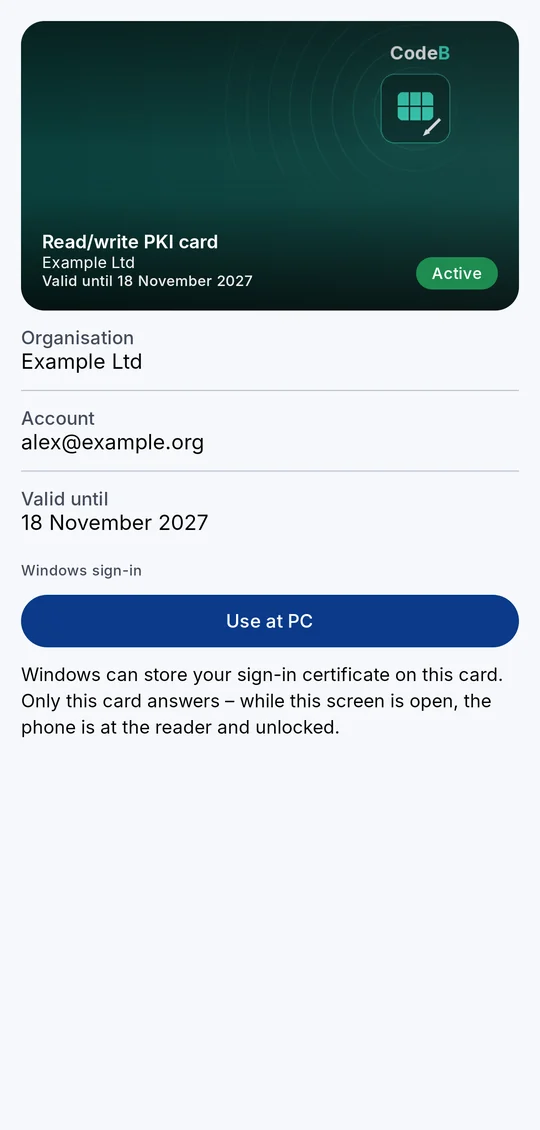
1Open the PKI card your organisation issued and tap Use at PC. 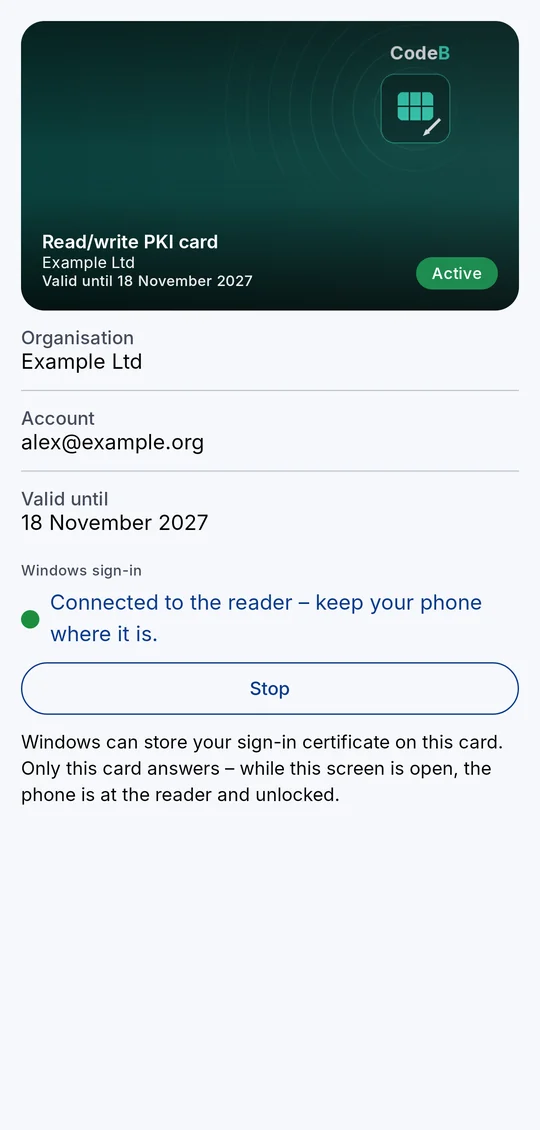
2Hold the phone to the PC’s NFC reader – the light turns green. 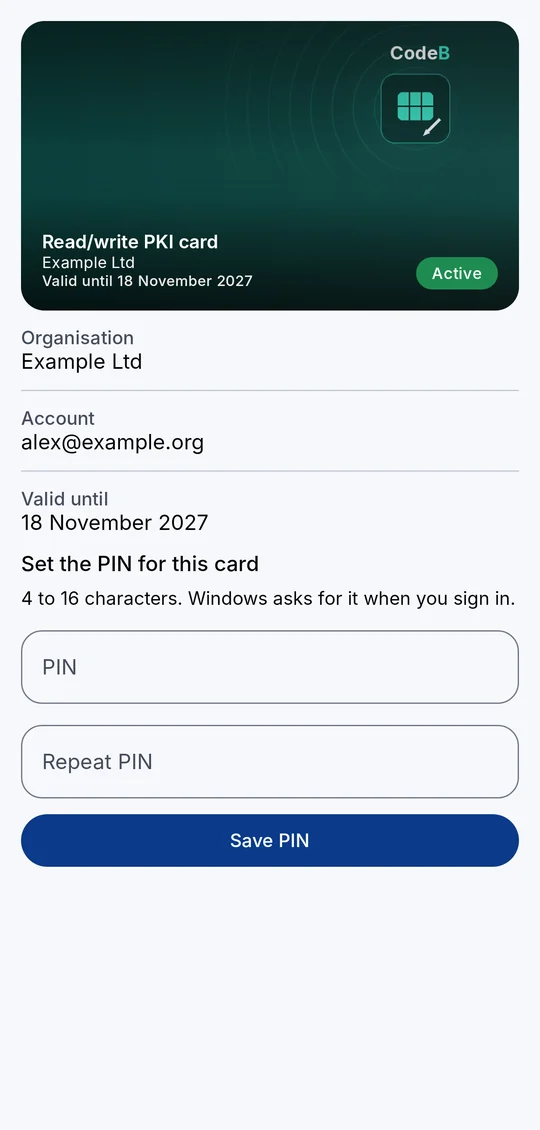
3The first time, you choose the card PIN. 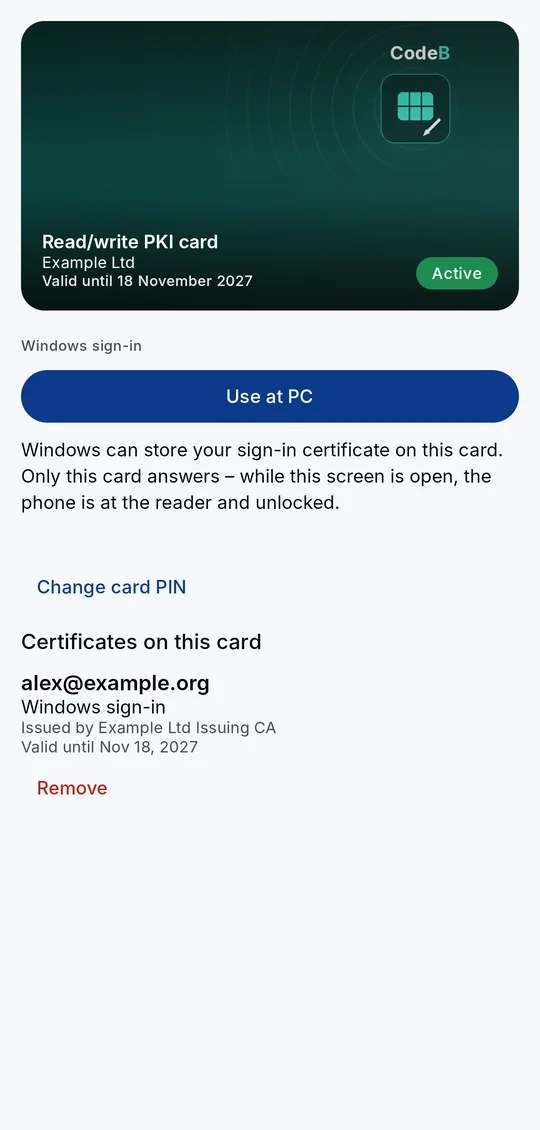
4The card lists its certificates with purpose, issuer and validity.
What you need
An Android phone with NFC, CodeB Wallet, and a PKI card issued to your wallet by your organisation (link, QR code or e-mail).
A Windows PC with a contactless (NFC) smart card reader, set up by your organisation for smart card sign-in.
Two kinds of PKI card
Read/write PKI card: Windows itself stores your sign-in certificate on the phone, as on any smart card. Its key is made in your phone’s secure hardware and never leaves it. Signing in at Windows with it works today.
Read-only PKI card: carries your organisation’s signing certificate, put on the card by its server right after you add it, so programs on the PC can sign with it.
How to sign in at Windows
- Open the PKI card in CodeB Wallet. The first time, choose the card PIN.
- At the PC, tap Use at PC.
- Hold your phone to the PC’s NFC reader and keep it unlocked. A light shows the connection: grey while it waits, green while connected.
- Windows sees a smart card. Choose it and enter the card PIN.
How your card is protected
Every use needs the card PIN, which you choose (read/write: 4 to 16 characters; read-only: 6 to 8 digits, with an unblock code, PUK). After too many wrong PINs the card is blocked.
Only the card you chose answers – only while its screen is open, the phone is at the reader and unlocked. It never interferes with door access, payment apps or your other cards.
Several cards, PIN change, removing certificates
You can hold several PKI cards side by side; each shows the name from its certificate. In the app you change the card PIN, unblock a read-only card with its PUK, and remove a certificate Windows put on a read/write card.
Questions about the phone as a smart card
Can I use my Android phone as a smart card for Windows logon?
Yes. With a PKI card in CodeB Wallet your phone acts as a contactless PKI smart card at a Windows PC with an NFC reader: hold it to the reader and enter the card PIN. Your organisation issues the card and sets up the PC for smart card sign-in.
Does the private key leave my phone?
No. The read/write card’s key is made in your phone’s secure hardware and never leaves it. The read-only card’s signing key comes from your organisation’s server and is kept in your phone’s secure hardware.
Do I need a special reader?
A contactless (NFC) smart card reader on the PC. The phone answers only while you hold it there with the card screen open and the phone unlocked.
What if I forget the card PIN?
A read-only card is unblocked with the PUK you noted when the card arrived. A blocked read/write card is unblocked or re-issued by your organisation.
Does it interfere with my payment cards or door access?
No. Only the card you chose answers, only while its screen is open and the phone is unlocked.
Install the test version (Google Play) Closed beta: works only for invited testers who are signed in to Google Play with the e-mail address we have on our tester list.