CodeB Wallet touchpoint guide
For organisations that ask people for proof, issue cards or request signatures with CodeB Wallet: one button per action, one QR frame and one reader sticker, all in CodeB’s own look. The same rules apply on a website, at a counter, on paper and at a door or PC.
Five principles
- Offer it where the decision is made – next to the form, checkout step or sign-in it replaces, never hidden in a menu.
- Say what you ask for and why, before the tap – one line under the button, for example “We check that you are over 18. We do not see your name or date of birth.”
- The person starts it – nothing opens the wallet or shows a QR code until the person taps the button or asks the staff.
- Always a way back and a way around – people without CodeB Wallet or without their phone get another route on the same page.
- Every result in plain words – success, cancel and failure each get a short sentence and a next step, never an error code alone.
Four actions, fixed labels
Pick the action; never write your own label. The button opens the matching app link of CodeB Wallet.
| Action | English | German | Maltese |
|---|---|---|---|
| Verify – proof of identity, age or a card (OpenID4VP) | Verify with CodeB Wallet | Mit CodeB Wallet nachweisen | Ivverifika b’CodeB Wallet |
| Add – issue a card or document (OpenID4VCI) | Add to CodeB Wallet | Zu CodeB Wallet hinzufügen | Żid ma’ CodeB Wallet |
| Sign – ask for a PDF signature | Sign with CodeB Wallet | Mit CodeB Wallet signieren | Iffirma b’CodeB Wallet |
| Open – the page only opens a wallet screen (e.g. passport reading, account) | Open CodeB Wallet | CodeB Wallet öffnen | Iftaħ CodeB Wallet |
The button
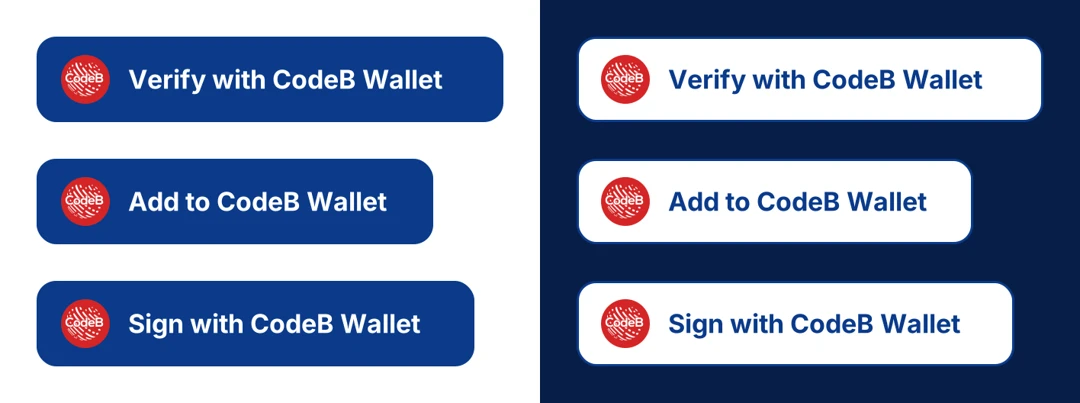
Rounded rectangle, the round red CodeB mark on the left and one line of text. Navy #0B3A8A with white text on light backgrounds; white with navy text and outline on dark backgrounds. 56 px high, never below 48 px, with at least 28 px clear space on every side.
Not allowed: other colours, a different label, the mark alone as a button, stretching, shadows, animation or your own logo inside the button.
Online: phone and computer
On a phone the button opens CodeB Wallet directly. On a computer it opens a dialog with the QR code, a typed link and “Open on this device”. In both cases the person sees in the wallet what is asked and confirms.
The dialog shows three states in plain words: waiting (“Open CodeB Wallet and confirm”), done (“Thank you – confirmed”, the page continues by itself) and not completed (what happened in one sentence and a button to try again). Next to the button: “No CodeB Wallet? Get it on Google Play” and your other way to continue.
In person and on paper: the QR frame
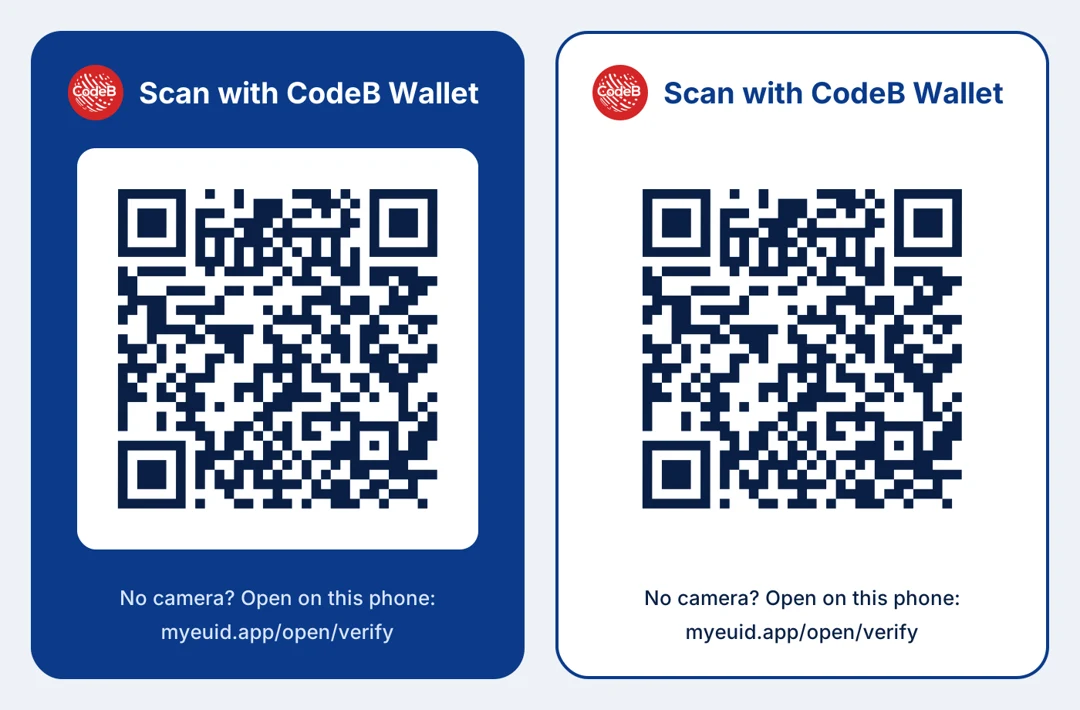
At a counter, on a kiosk screen or on paper the QR code always sits in the CodeB frame: a header with the mark, the code on white and a typed link for people who cannot scan. The code is at least 30 mm wide on paper and 200 px on screens. Staff start a request only when the person asks, and the screen shows the result in words, for example “Age confirmed”.
CodeB Wallet itself uses the same frame when you share the app with someone.
Doors and PCs: the reader sticker
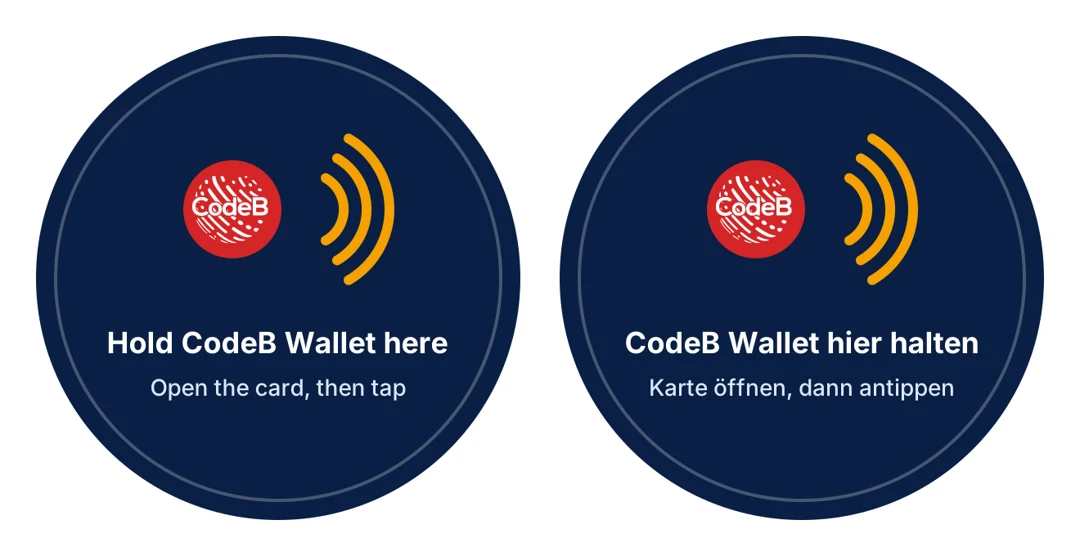
Readers that accept CodeB cards over NFC – door readers and PCs for the read/write and read-only PKI cards – carry the round sticker “Hold CodeB Wallet here”, 40 or 60 mm, centred on the antenna. Its hint “Open the card, then tap” matters: a card answers only after the person chooses it in the app, for a limited time and with the phone unlocked. Next to another maker’s reader the sticker sits beside their symbol, never over it.
Wording and accessibility
Write “CodeB Wallet” (two words, capital C and B), call the cards by the names the app uses, and describe what the person shares (“your age”). Never call anything “official”, “certified” or “government-approved”, and never show an error code alone.
Use a real button or link whose accessible name is the visible label, reachable by keyboard with a visible focus ring; contrast at least 4.5:1 (both variants meet it). In the QR dialog the focus stays inside, Escape closes it and status changes are announced to screen readers. The label language follows the page language.
Asset kit
Buttons (navy and white, English, German and Maltese – Spanish and Finnish to follow), QR frame templates for screens and print, and the reader sticker are available to CodeB customers and partners. Ask us for the kit.
Questions from partners
How do I add a “Verify with CodeB Wallet” button to my website?
Use the navy button (white on dark backgrounds) with the fixed label for your action and link it to your OpenID4VP request. On phones it opens CodeB Wallet directly; on computers show the QR frame with the typed link. Ask us for the asset kit.
Which protocols do the buttons start?
Verify starts an OpenID4VP presentation request, Add an OpenID4VCI credential offer, Sign a CodeB signing request and Open a wallet screen. CodeB Wallet also accepts the standard openid4vp://, haip-vp:// and haip:// links.
Can people use another EU wallet on my page?
Yes. Keep a small plain link to the standard request next to the CodeB button so people with another wallet are never excluded.
Do I need a CodeB reader for doors or PCs?
No. Any reader that accepts CodeB cards over NFC can carry the sticker; place it next to the reader maker’s own symbol, never over it.
Is CodeB Wallet certified or official?
Do not describe it as official, certified or government-approved. Describe what the person shares, for example “your age”.