CodeB Wallet
Create a free CodeB account
This link opens CodeB Wallet on your Android phone.
Open this page on your Android phone – the link only works there.
Don’t have CodeB Wallet yet? Three steps
- Install CodeB Wallet from Google Play.
- Open the app and set your wallet PIN.
- Come back to this page and tap “Open CodeB Wallet” – the app opens the right screen.
Closed beta: works only for invited testers who are signed in to Google Play with the e-mail address we have on our tester list.
 Scan to get the appPoint your Android phone’s camera at the code to open CodeB Wallet on Google Play (invited testers).
Your free CodeB account – opened with your passport or ID card
Signing your own PDFs with the CodeB signing service and the test PID and Photo ID need an account on phone.codeb.io. You open it right in the app, in about two minutes: hold your passport or ID card to your phone, confirm your e-mail address – done. No form, no captcha, no waiting for approval.
- Sign 5 of your own PDFs a day – documents others ask you to sign do not count
- Add the test PID and Photo ID straight to your wallet
- Works on a freshly installed app – no other card needed
- Any passport or ID card with a chip, from any country
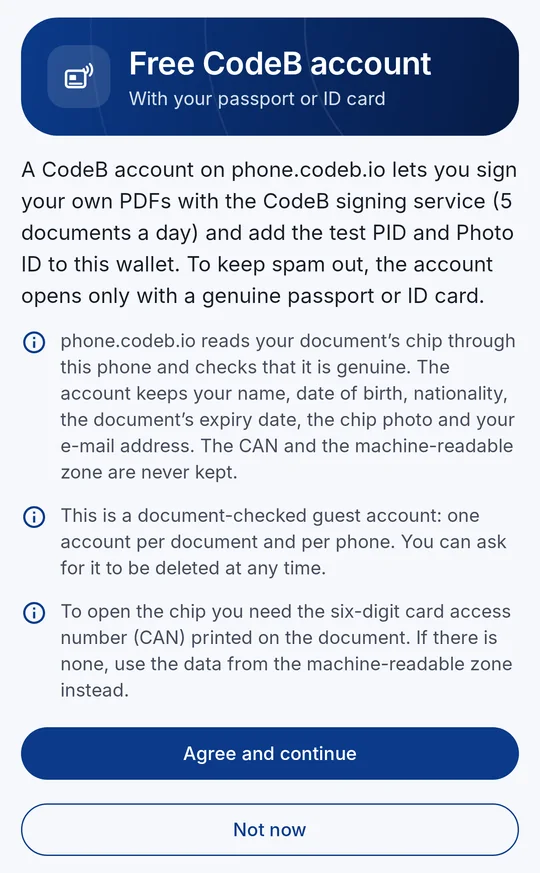
1Read what is checked and kept 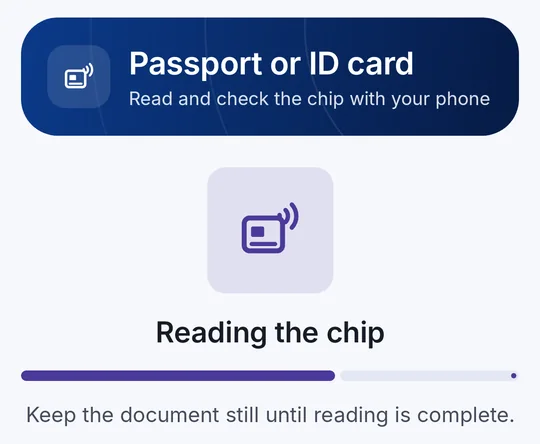
2Hold your passport or ID card to the phone 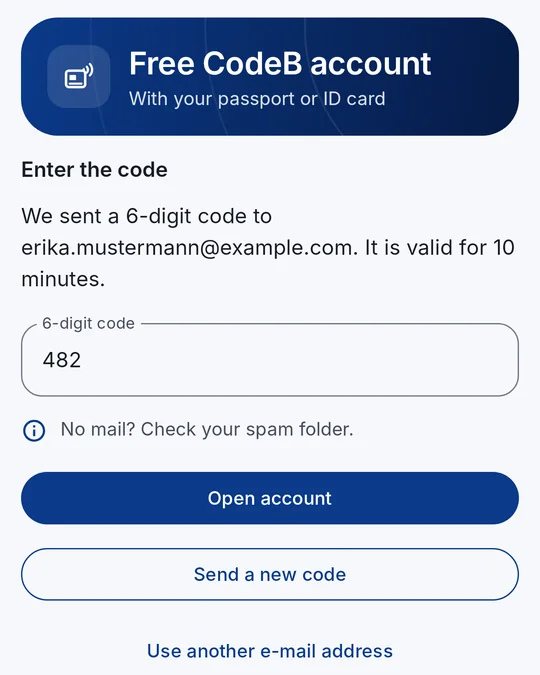
3Type the code from the mail 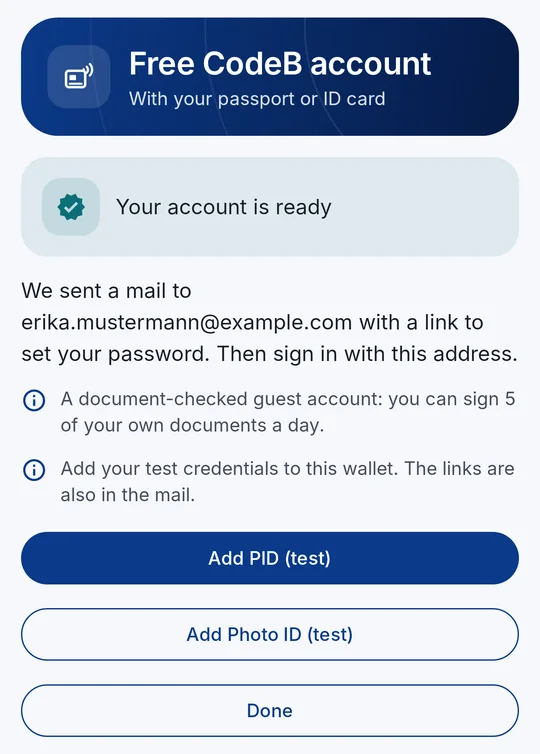
4Account ready – add the test PID and Photo ID
How to open your free account
- Open Settings and tap Create a free CodeB account in the section “CodeB account” – or tap the link myeuid.app/open/account on your phone. You need no other card in your wallet.
- Read what is checked and kept, then tap Agree and continue.
- Enter the card access number (CAN) printed on your ID card, or scan the machine-readable zone of your passport.
- Hold the document flat against the back of your phone until the reading is finished. phone.codeb.io reads and checks the chip itself.
- When your document is confirmed as genuine, enter your e-mail address and tap Send code. The address becomes your login.
- Enter the 6-digit code from the mail and tap Open account.
- Your account is ready: open the mail and set your password with the link. Tap Add PID (test) and Add Photo ID (test) to add your test credentials.
Why a passport or ID card?
To keep spam and bots out, phone.codeb.io reads the chip of your document through your phone and checks that it is genuine – and that the app is the genuine CodeB Wallet on a genuine phone. One account per document and per phone. The CAN, the machine-readable zone and the raw chip data are never kept.
It is a document-checked guest account – not an official identity and not a qualified signature.
What is kept
Your name, date of birth, nationality, the document’s expiry date, the chip photo and your e-mail address. The CAN, the machine-readable zone and the raw chip data are never kept.
You can have the account deleted at any time. In the app, Settings → “CodeB account” opens your account on phone.codeb.io.
How it works Step-by-step manual
What else the app can do
CodeB Wallet
Kostenloses CodeB-Konto anlegen
Dieser Link öffnet die CodeB Wallet auf Ihrem Android-Telefon.
Öffnen Sie diese Seite auf Ihrem Android-Telefon – der Link funktioniert nur dort.
Noch keine CodeB Wallet? In drei Schritten
- Installieren Sie die CodeB Wallet aus Google Play.
- Öffnen Sie die App und legen Sie Ihre Wallet-PIN fest.
- Kommen Sie zurück zu dieser Seite und tippen Sie auf „CodeB Wallet öffnen“ – die App öffnet direkt den richtigen Bildschirm.
Geschlossene Beta: funktioniert nur für eingeladene Tester, die bei Google Play mit der E-Mail-Adresse angemeldet sind, die auf unserer Testerliste steht.
Scannen und App holenHalten Sie die Kamera Ihres Android-Telefons auf den Code, um CodeB Wallet in Google Play zu öffnen (für eingeladene Tester).
Ihr kostenloses CodeB-Konto – eröffnet mit Pass oder Ausweis
Für das Signieren eigener PDFs mit dem CodeB-Signaturdienst und für die Test-PID und die Photo ID brauchen Sie ein Konto auf phone.codeb.io. Sie eröffnen es direkt in der App, in etwa zwei Minuten: Pass oder Ausweis ans Telefon halten, E-Mail-Adresse bestätigen – fertig. Kein Formular, kein Captcha, kein Warten auf eine Freigabe.
- 5 eigene PDFs am Tag signieren – Dokumente, die andere Sie zu signieren bitten, zählen nicht mit
- Test-PID und Photo ID direkt in Ihre Wallet
- Funktioniert in einer frisch installierten App – keine andere Karte nötig
- Jeder Pass oder Ausweis mit Chip, aus jedem Land
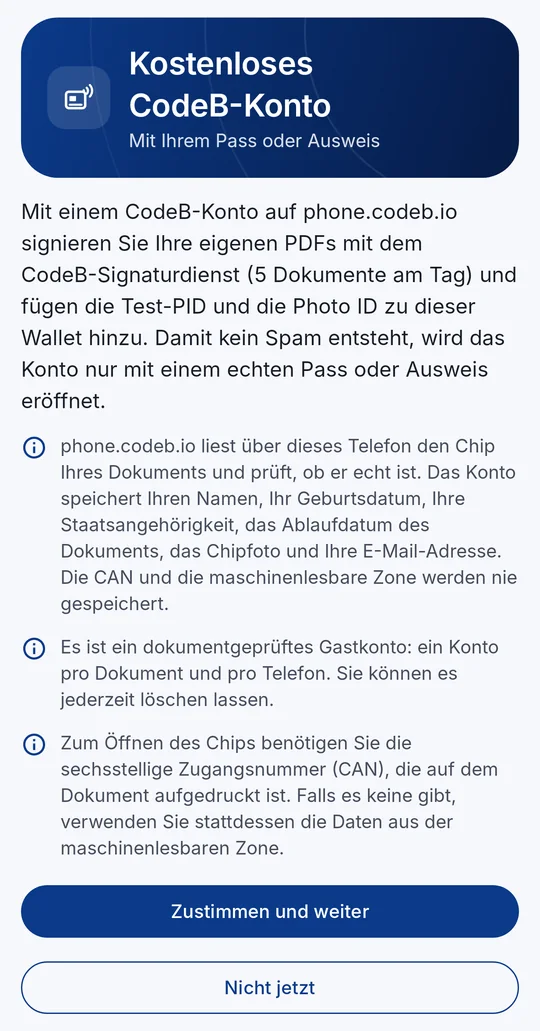
1Lesen, was geprüft und gespeichert wird 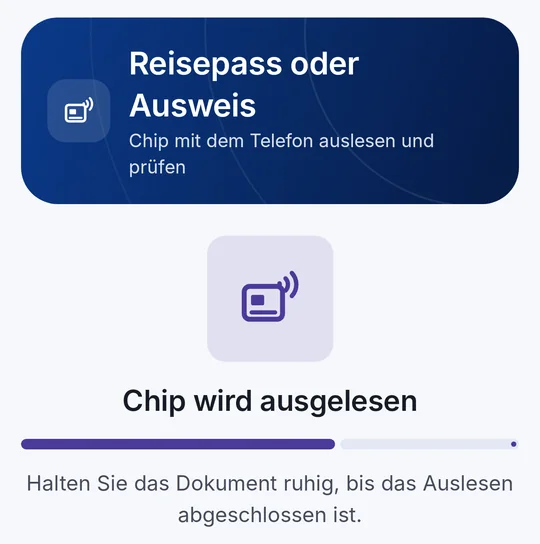
2Pass oder Ausweis ans Telefon halten 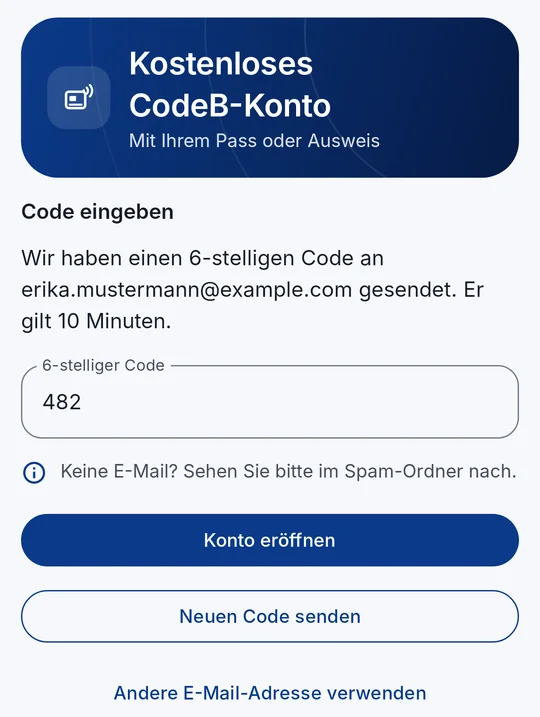
3Code aus der E-Mail eingeben 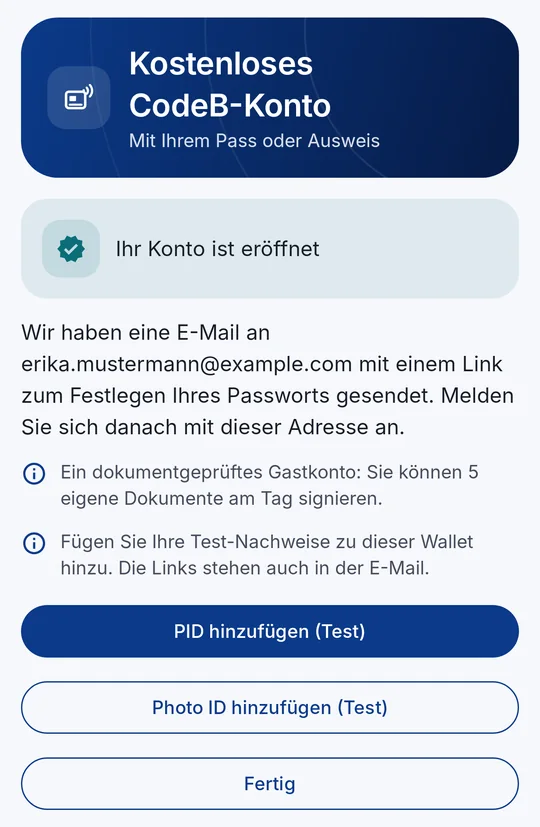
4Konto eröffnet – Test-PID und Photo ID hinzufügen
So eröffnen Sie Ihr kostenloses Konto
- Öffnen Sie die Einstellungen und tippen Sie im Abschnitt „CodeB-Konto“ auf Kostenloses CodeB-Konto anlegen – oder tippen Sie auf Ihrem Telefon auf den Link myeuid.app/open/account. Sie brauchen keine andere Karte in Ihrer Wallet.
- Lesen Sie, was geprüft und gespeichert wird, und tippen Sie auf Zustimmen und weiter.
- Geben Sie die Zugangsnummer (CAN) von Ihrem Ausweis ein oder scannen Sie die maschinenlesbare Zone Ihres Passes.
- Halten Sie das Dokument flach an die Rückseite Ihres Telefons, bis das Auslesen fertig ist. phone.codeb.io liest und prüft den Chip selbst.
- Ist Ihr Dokument als echt bestätigt, geben Sie Ihre E-Mail-Adresse ein und tippen auf Code senden. Die Adresse wird Ihr Login.
- Geben Sie den 6-stelligen Code aus der E-Mail ein und tippen Sie auf Konto eröffnen.
- Ihr Konto ist eröffnet: Öffnen Sie die E-Mail und legen Sie mit dem Link Ihr Passwort fest. Tippen Sie auf PID hinzufügen (Test) und Photo ID hinzufügen (Test), um Ihre Test-Nachweise hinzuzufügen.
Warum Pass oder Ausweis?
Damit kein Spam und keine Bots entstehen, liest phone.codeb.io über Ihr Telefon den Chip Ihres Dokuments und prüft, ob er echt ist – und ob die echte CodeB Wallet auf einem echten Telefon läuft. Ein Konto pro Dokument und pro Telefon. Die CAN, die maschinenlesbare Zone und die Rohdaten des Chips werden nie gespeichert.
Es ist ein dokumentgeprüftes Gastkonto – keine amtliche Identität und keine qualifizierte Signatur.
Was gespeichert wird
Ihr Name, Geburtsdatum, Staatsangehörigkeit, das Ablaufdatum des Dokuments, das Chip-Foto und Ihre E-Mail-Adresse. Die CAN, die maschinenlesbare Zone und die Rohdaten des Chips werden nie gespeichert.
Sie können das Konto jederzeit löschen lassen. In der App öffnet Einstellungen → „CodeB-Konto“ Ihr Konto auf phone.codeb.io.
So funktioniert es Anleitung Schritt für Schritt
Was die App sonst kann
CodeB Wallet
Oħloq kont CodeB b’xejn
Dan il-link jiftaħ CodeB Wallet fuq il-mowbajl Android tiegħek.
Iftaħ din il-paġna fuq il-mowbajl Android tiegħek – il-link jaħdem hemm biss.
Għad m’għandekx CodeB Wallet? Tliet passi
- Installa CodeB Wallet minn Google Play.
- Iftaħ l-app u ssettja l-PIN tal-wallet.
- Erġa’ lura f’din il-paġna u agħfas “Iftaħ CodeB Wallet” – l-app tiftaħ dritt l-iskrin it-tajjeb.
Beta magħluqa: taħdem biss għal testers mistiedna li daħlu f’Google Play bl-indirizz tal-email li għandna fil-lista tat-testers tagħna.
Skennja u ġib l-appIpponta l-kamera tal-mowbajl Android tiegħek lejn il-kodiċi biex tiftaħ CodeB Wallet fuq Google Play (għal testers mistiedna).
Il-kont CodeB tiegħek b’xejn – miftuħ bil-passaport jew bil-karta tal-identità
Biex tiffirma l-PDFs tiegħek bis-servizz tal-firma ta’ CodeB u biex ikollok il-PID tat-test u l-Photo ID, għandek bżonn kont fuq phone.codeb.io. Tiftħu direttament fl-app, f’madwar żewġ minuti: żomm il-passaport jew il-karta tal-identità mal-mowbajl, ikkonferma l-indirizz tal-email – lest. Ebda formola, ebda captcha, ebda stennija għall-approvazzjoni.
- Iffirma 5 PDFs tiegħek kuljum – id-dokumenti li ħaddieħor jitolbok tiffirma ma jgħoddux
- Żid il-PID tat-test u l-Photo ID direttament fil-wallet
- Jaħdem fuq app għadha kif ġiet installata – m’għandek bżonn l-ebda karta oħra
- Kull passaport jew karta tal-identità b’ċippa, minn kull pajjiż
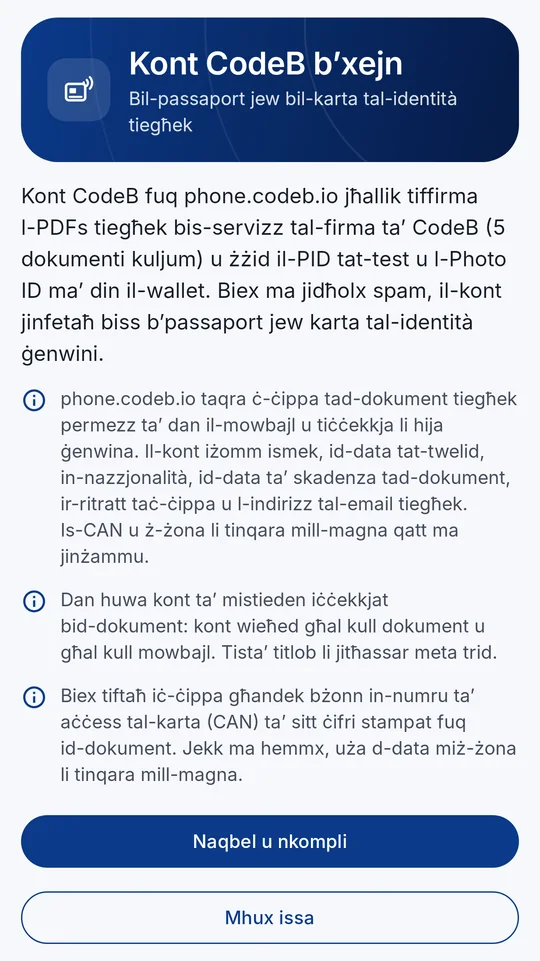
1Aqra x’jiġi ċċekkjat u x’jinżamm 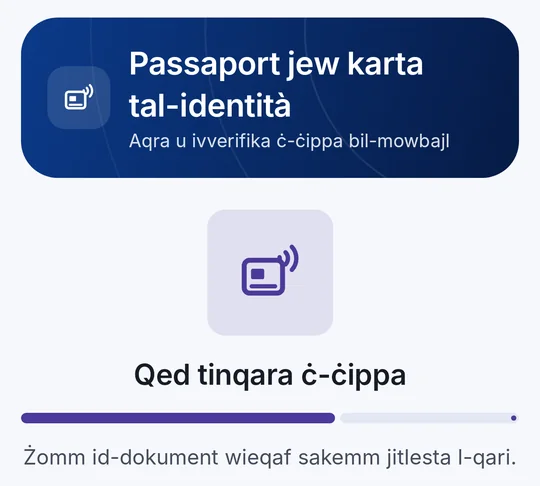
2Żomm il-passaport jew il-karta mal-mowbajl 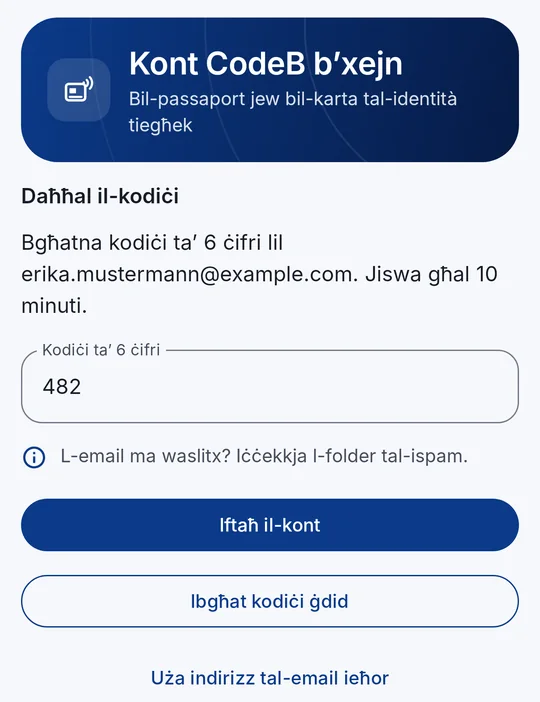
3Ikteb il-kodiċi mill-email 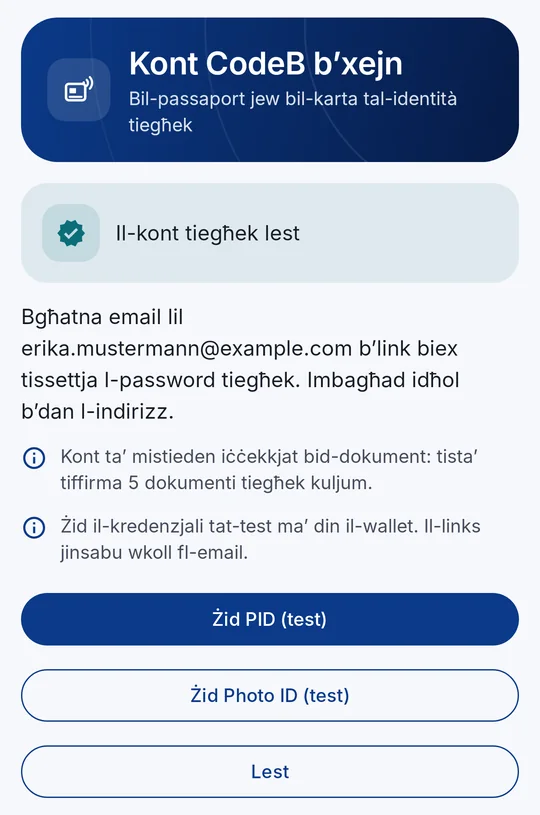
4Il-kont lest – żid il-PID tat-test u l-Photo ID
Kif tiftaħ il-kont tiegħek b’xejn
- Iftaħ l-Issettjar u agħfas Oħloq kont CodeB b’xejn fit-taqsima “Kont CodeB” – jew agħfas il-link myeuid.app/open/account fuq il-mowbajl. M’għandek bżonn l-ebda karta oħra fil-wallet.
- Aqra x’jiġi ċċekkjat u x’jinżamm, imbagħad agħfas Naqbel u nkompli.
- Daħħal in-numru ta’ aċċess (CAN) stampat fuq il-karta tal-identità tiegħek, jew skennja ż-żona li tinqara mill-magna tal-passaport.
- Żomm id-dokument ċatt mad-dahar tal-mowbajl sakemm jitlesta l-qari. phone.codeb.io taqra u tiċċekkja ċ-ċippa hi stess.
- Meta d-dokument jiġi kkonfermat bħala ġenwin, daħħal l-indirizz tal-email tiegħek u agħfas Ibgħat il-kodiċi. L-indirizz isir il-login tiegħek.
- Daħħal il-kodiċi ta’ 6 ċifri mill-email u agħfas Iftaħ il-kont.
- Il-kont tiegħek lest: iftaħ l-email u ssettja l-password bil-link. Agħfas Żid PID (test) u Żid Photo ID (test) biex iżżid il-kredenzjali tat-test.
Għaliex passaport jew karta tal-identità?
Biex ma jidħolx spam jew bots, phone.codeb.io taqra ċ-ċippa tad-dokument tiegħek permezz tal-mowbajl u tiċċekkja li hija ġenwina – u li l-app hija l-CodeB Wallet ġenwina fuq mowbajl ġenwin. Kont wieħed għal kull dokument u għal kull mowbajl. Is-CAN, iż-żona li tinqara mill-magna u d-data mhux ipproċessata taċ-ċippa qatt ma jinżammu.
Huwa kont ta’ mistieden iċċekkjat bid-dokument – mhux identità uffiċjali u mhux firma kwalifikata.
X’jinżamm
Ismek, id-data tat-twelid, in-nazzjonalità, id-data ta’ skadenza tad-dokument, ir-ritratt taċ-ċippa u l-indirizz tal-email tiegħek. Is-CAN, iż-żona li tinqara mill-magna u d-data mhux ipproċessata taċ-ċippa qatt ma jinżammu.
Tista’ titlob li l-kont jitħassar fi kwalunkwe ħin. Fl-app, Issettjar → “Kont CodeB” jiftaħ il-kont tiegħek fuq phone.codeb.io.